How to keep an important Magic Guard recording
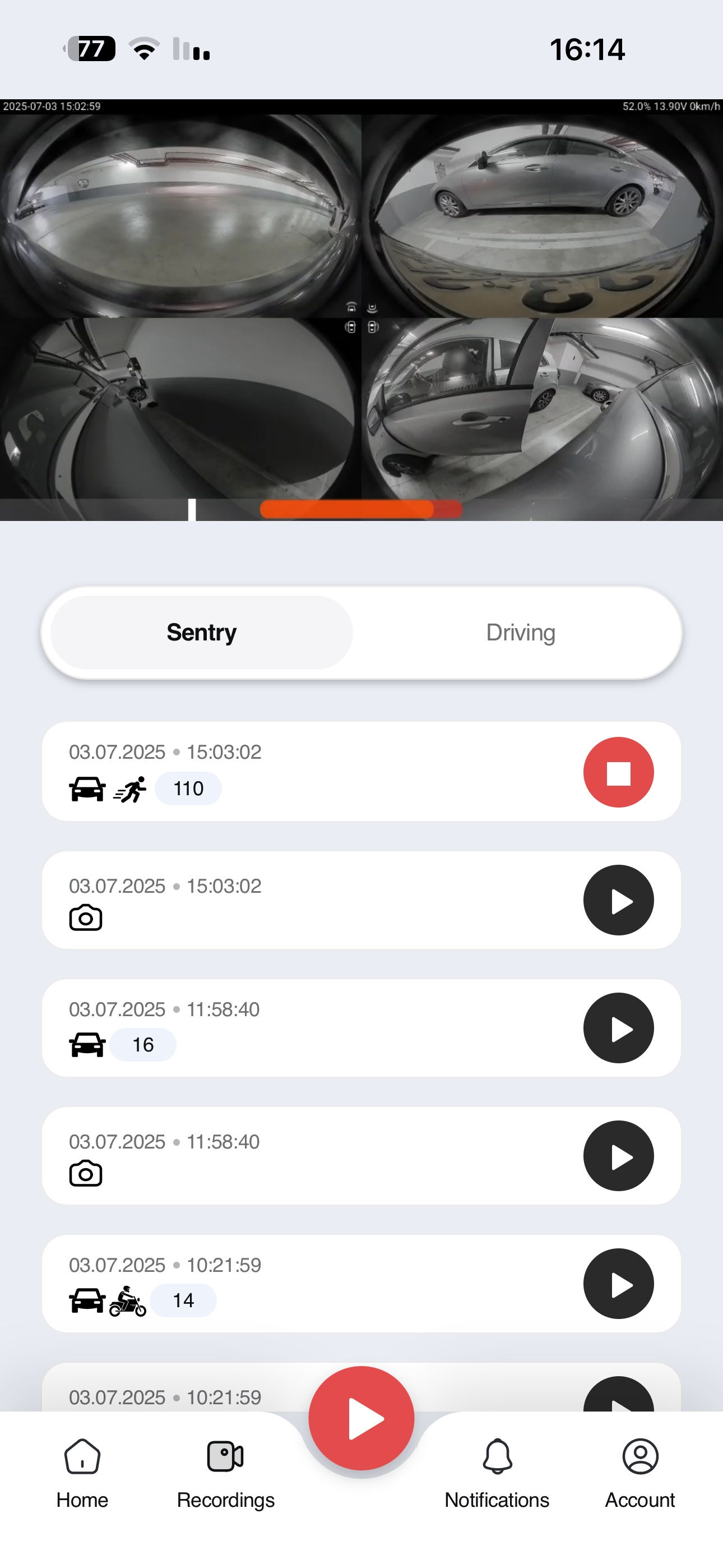
When an incident matters, find and check the recording promptly. Locking a clip helps preserve it in the recording list, but a lock is not a backup.
Find the correct date and time
Open the recording list and select the relevant date and time range. Review footage before and after the event to preserve context. If no clip is present, check the recording mode and selected vehicle storage.
Lock the important clip
In versions that support it, swipe left on the recording and select Lock. This protects the clip from automatic deletion of older recordings. Confirm that the lock indicator appears on the intended clip.
Keep a separate copy
Use the saving option available in your app version to keep a copy outside the vehicle storage. Ask the support bot for guidance if the option is unclear. Locking does not protect against card failure or formatting.
Open and check the saved file
Play the saved copy through the relevant section and confirm the event and date are correct. Keep the original before trimming or editing. Share footage only with people who need it.
Leave room for future recordings
Check free space on the selected storage. An accumulation of locked clips can reduce space available for new recordings. Before manual deletion or formatting, confirm that important files are backed up and that the copies open correctly.