Magic Guard not connecting to your BYD? Start here
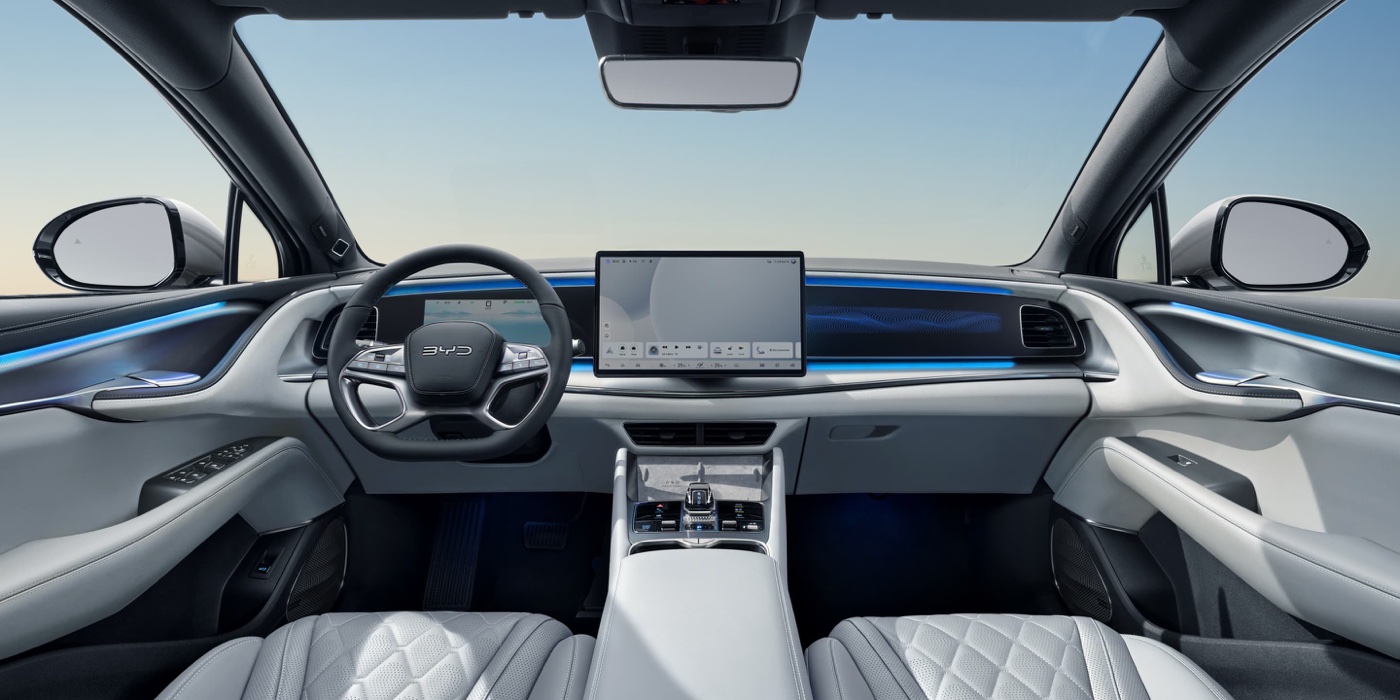
If your BYD appears offline or the cameras do not connect, start with the checks below. First note whether the whole vehicle is offline, only live video fails, or the connection stops after the car is turned off. This helps distinguish a connection problem from a recording or notification issue.
1. Check Auto Start Disable in the car
In Guard Manager, open Home, Advanced Settings, then Auto Start Disable. In the window that opens, remove the check mark beside the app or turn its switch off. This switch disables automatic startup, so it needs to be off. Do not turn off the main Sentry Mode or recording switch. Try connecting again after the change.
2. Check internet on both devices
Verify that internet works in the car and on your phone. If the connection fails only when the car is off, check whether the internet source also turns off. Local recordings can exist even when remote viewing is unavailable because the car has no internet connection.
3. Check the vehicle account and both apps
Open the car app and confirm that it displays the expected account. Check the versions of Magic Guard on the phone and Guard Manager in the vehicle, then follow the official update instructions if needed. Avoid deleting app data or reinstalling as a first step.
4. Separate video, recording and alert problems
If the vehicle is online but live video fails, tell support that only streaming is affected. For missing recordings, check the date, recording mode, selected storage location and free space. If recordings exist but push alerts are missing, check notification settings separately from detection sensitivity.
5. What to send support
Include the vehicle model, both app versions, the exact message and whether the issue happens with the car on, off or both. Mention the checks already completed. Use the official contact page. Do not publish passwords, verification codes or temporary support codes in public groups.