BYD cameras: remote viewing, recordings and Sentry Mode
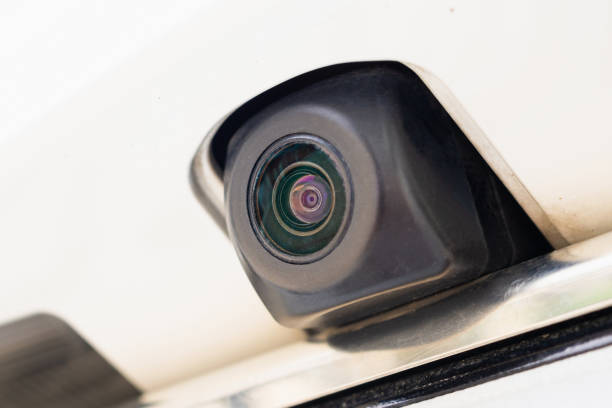
Magic Guard lets you view cameras and recordings from a compatible BYD on your phone. Magic Guard is the mobile app; Guard Manager runs in the vehicle. Camera availability and vehicle controls depend on your model, multimedia system and software version.
Parking cameras, a dashcam and Sentry Mode
A camera view on the vehicle screen does not by itself confirm that remote access or recording is available. Live viewing shows what is happening now. Recordings let you review saved footage. Sentry Mode monitors the parked vehicle according to your detection settings. These are different functions and need to be configured separately.
What do I need for remote camera viewing?
You need a compatible vehicle setup, Guard Manager in the car and Magic Guard on your phone, connected to the correct account. Both the vehicle and phone need working internet for remote viewing. Check compatibility before purchasing: the same model name can have different multimedia systems in different markets.
How to get started
Use the official installation guide and downloads below. Complete account sign in and vehicle linking, then test live viewing while parked. Check that recordings are being saved to the intended storage location. Test the connection again after leaving the vehicle, including whether its internet connection remains available.
Set up parking monitoring
In updated versions, detection uses a manual sensitivity threshold. A lower value means greater sensitivity; adjust it gradually and review the detection zones. Detection sensitivity and push notification settings are separate. If footage is saved but alerts do not arrive, check notification settings on the app and phone.
Keep important recordings
In the mobile recordings screen, swipe a recording left and choose Lock to protect it from automatic deletion. A locked video still uses storage and is not a backup outside the car. Keep a separate copy of important footage. Check free space and the selected storage location before assuming a recording is missing.
Does it work with every BYD?
Compatibility is not guaranteed by the BYD badge alone. Check the model, multimedia system and installed versions with support if you are unsure. Magic Guard is a separate app from the official BYD app. Use the purchase page for current plan details and prices rather than relying on an older article.
BYD app and BYD apps: which application do I need?
The official BYD app and Magic Guard are separate applications. For the Magic Guard setup, install Magic Guard on your Android phone or iPhone and Guard Manager in the compatible vehicle. Link both to the correct account. If you are looking for a BYD camera app, check camera access and recording compatibility rather than assuming every BYD app provides these functions. Use the download and installation links below, or ask the support chat to help identify the right setup.
BYD dashcam: how do I check that recordings are saved?
For BYD dashcam or dash cam recording, first check the available cameras, recording settings, storage location and free space in your vehicle setup. Live camera viewing is different from saving a video. Test a short recording while parked, then find and play the clip. Keep a separate copy of important footage and use the memory card guide below to choose suitable storage. The available recording modes depend on the vehicle system and installed software.
BYD Sentry Mode and vehicle security while parked
BYD sentry monitoring with Magic Guard is intended to help you review activity around a compatible parked vehicle. Configure detection zones, sensitivity and notifications, then test the saved footage and alerts separately. Remote camera viewing also requires internet in the car and phone. A BYD security app does not guarantee that every event will be detected or replace physical vehicle security. Before relying on it overnight, check the connection, storage and vehicle power settings.